
Smart TV setup guideUpdated for 2026
IBO Player Setup Guide for UK Viewers
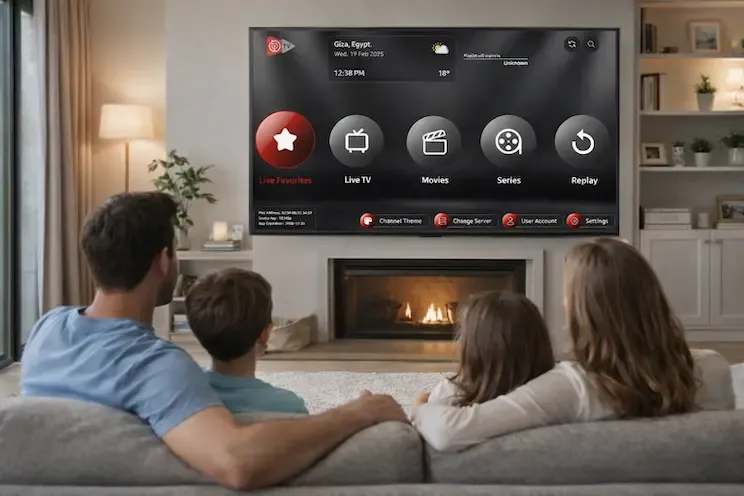
IBO Player turns a compatible Smart TV or streaming device into a clean home for live TV, films and series. The app does not include channels. You install the player first, then add the M3U link or Xtream Codes details supplied with your own subscription.
- 01 App and subscription explained
- 02 M3U and Xtream Codes setup
- 03 Smart TV troubleshooting
The short answer
What is IBO Player?
IBO Player is a media player built to display playlists on televisions and streaming devices. It can organise live channels, video-on-demand libraries and programme-guide data when those elements are included in the account you add.
That distinction matters. Paying to activate the IBO Player app does not buy channels, and buying an IPTV subscription does not automatically pay the app developer's licence. Treat them as two separate purchases and check both before you start.
Before entering any details
Three checks that prevent most setup mistakes
A few minutes here is quicker than resetting the app later. Keep the television on the IBO Player account screen while you complete these checks.
Confirm the exact app
Several products use similar names. Install from your device's app store and compare the publisher and website shown inside the app.
Copy, do not guess
Device IDs, keys and server addresses are easy to mistype. Copy them exactly, including punctuation and capital letters.
Protect your login
Do not post your Device Key, playlist URL, username or password in public groups. Those details can provide access to your account.
The publisher warns that copycat activation websites exist. Check the address shown inside your installed app and confirm it against the official IBO Player website before paying an activation fee.
From install to first channel
How to set up IBO Player
The labels can vary slightly between IBO Player versions, but the setup path is consistent: install, identify the device, add the account and refresh the app.
- 1
Install IBO Player
Search for IBO Player in the app store on your Samsung TV, LG TV, Android TV or supported streaming device. Avoid random APK download pages when an app-store version is available.
- 2
Open the account screen
Launch the IBO Player app and note the Device ID or MAC address together with the Device Key. Leave this screen open so you can compare the details.
- 3
Open the management address
On a phone or computer, use the playlist-management address displayed inside the app. Enter the Device ID and Device Key exactly as shown.
- 4
Add your subscription
Choose M3U playlist or Xtream Codes, depending on the details supplied by your provider. Give the playlist a recognisable name, save it and keep the login private.
- 5
Refresh the television
Close and reopen IBO Player. Allow the playlist and EPG to load fully before checking live channels, films, series and programme information.
Check before activation
Where can you use the IBO Player app?
Availability depends on the model, country and operating-system version. Search your device's own store first rather than assuming every television with the same brand is supported.
Tizen Smart TV
Search Samsung Apps on the television. Our Samsung IPTV setup guide explains the device-specific checks.
webOS Smart TV
Use the LG Content Store and verify the app before activation. See the LG Smart TV IPTV guide.
Android TV and boxes
Look in Google Play on the device. App availability and sideload settings vary by manufacturer and Android version.
Fire TV devices
Check the Amazon Appstore for your model. If the app is unavailable, do not use an unknown download merely to force installation.
Connect the player
Use IBO Player with a compatible IPTV subscription
Once the app is installed, you need working account details in a format it accepts. BritCast plans provide the subscription separately from the IBO Player licence, so you can see exactly what you are buying.
- Clear subscription terms from one to twelve months
- Setup details supplied for a compatible player
- Support throughout the selected subscription period
- No automatic renewal
Fix the cause, not the symptom
IBO Player troubleshooting
Work through one check at a time. Reinstalling the app first can remove useful details and rarely fixes an incorrect playlist or expired account.
The playlist does not appear
Recheck the Device ID and Device Key, then confirm that the playlist was saved to that exact device. Close the app completely and reopen it.
Channels do not load
Test another app or device on the same network. If the account fails everywhere, contact the subscription provider rather than paying the IBO Player activation again.
The guide is empty
Allow time for the EPG to finish loading. Programme data depends on the information included with the playlist and may not cover every channel.
The MAC address changed
Switching between Wi-Fi and Ethernet can expose a different network address. Check the ID currently displayed inside the app before editing the playlist.
Playback keeps buffering
Restart the router and television, close background apps and test near the TV. Our IPTV buffering guide covers the network checks in more detail.
The activation did not add channels
This is expected. App activation unlocks the player; it does not include a playlist, channels or an IPTV subscription.
Straight answers
IBO Player FAQs
Answers to the questions that usually come up between installing the app and loading the first playlist.
Does IBO Player include channels?
No. IBO Player is a media player and does not include channels, films, series or a subscription. You must add a compatible playlist or account that you are authorised to use.
How do I add a playlist to IBO Player?
Open the app, note the Device ID and Device Key, then visit the management address displayed inside the app. Sign in with those details and add the M3U URL or Xtream Codes login supplied by your provider.
Can IBO Player use Xtream Codes?
Supported versions can accept Xtream Codes as well as M3U playlists. You normally need the server address, username and password. Enter each field exactly and never publish those credentials.
Can I use IBO Player on Samsung and LG TVs?
The app is available on several Samsung Tizen and LG webOS televisions, but support can vary by model, region and software version. Search the television's app store before purchasing an activation.
Why does IBO Player show an empty screen?
The app may be installed correctly but have no playlist attached. Confirm the device details, playlist status and subscription validity, then restart the app and allow the content to load.
Is the IBO Player licence the same as an IPTV subscription?
No. The licence activates the media player. An IPTV subscription is a separate service that supplies the compatible account or playlist. Paying for one does not automatically include the other.
Player ready?
Add the subscription that fits your viewing
Compare BritCast terms, choose the right commitment and use the supplied details with your compatible IBO Player setup.