
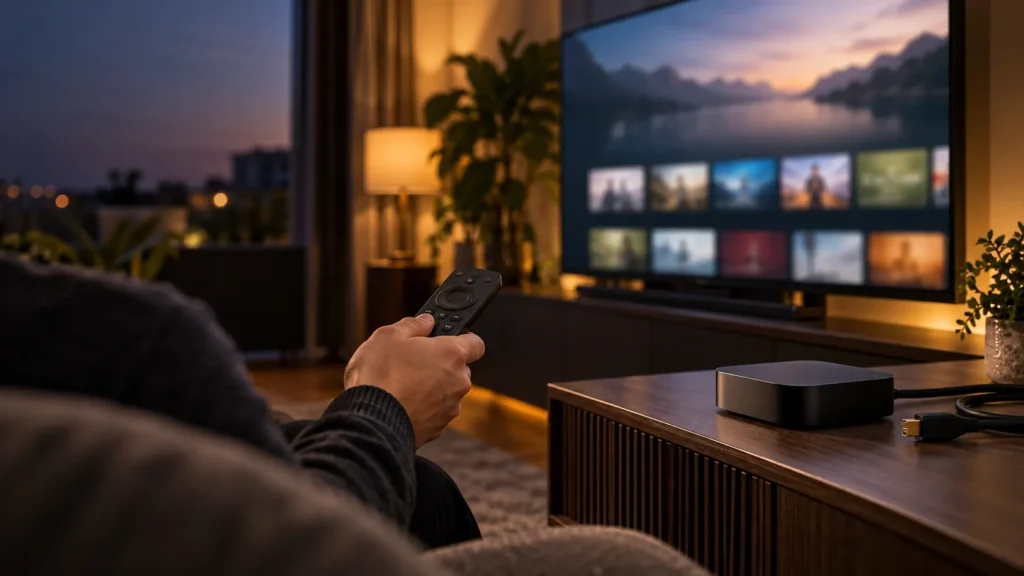
The Google TV Streamer 4K is a sensible choice for anyone who wants a small box rather than relying on an ageing smart TV app. It sits by the television, connects through HDMI and gives you Google TV, the Play Store and a proper remote in one place.
This guide explains how to set up Google TV Streamer 4K IPTV UK viewing without turning the job into a weekend project. We will cover the first connection, app choices, picture settings and the small problems that tend to crop up on day one. This Google TV Streamer 4K IPTV UK guide keeps the process simple. If you are still deciding on a service, BritCast has UK-focused plan and device guidance to help you choose the right route first.
Table of Contents
Is Google TV Streamer 4K a good choice for IPTV?
For a Google TV Streamer 4K IPTV UK setup, that app flexibility is the real advantage over a basic smart-TV interface. For a main TV, it is a strong option. The device runs Google TV, so you can install compatible streaming and player apps from the Play Store instead of depending on the limited app selection built into many televisions. It also supports either Wi-Fi or Ethernet, which matters if the router is close enough to cable in.
It is not magic. A stable home connection and an app that works on Google TV still matter more than the badge on the box. But the extra storage and the normal set-top-box shape make it a more comfortable fit than an older streaming stick for a living-room television.
What you need before you start
- A TV with a free HDMI port.
- The Google TV Streamer 4K, its power supply and the voice remote.
- An HDMI cable. Google states that the device needs an HDMI 2.1 cable; it is sold separately.
- Home Wi-Fi or an Ethernet connection.
- A Google account and, for the guided route, the Google Home app on a phone or tablet.
- A legitimate streaming subscription or player login where required.
Before buying a cable, check your TV rather than guessing. For 4K playback, Google lists a 4K display, an HDCP 2.2-capable HDMI port and suitable 4K content among the requirements. Its 4K support guide is a useful reference if the picture does not appear as expected.
Set up the Google TV Streamer 4K
1. Connect the box properly
Connect the streamer to the TV with HDMI, then use the supplied power adaptor rather than trying to power it from a television USB socket. Switch the TV to the HDMI input you used. The remote normally pairs by itself. If it does not, the on-screen setup gives you a prompt to pair it.
2. Use the Google Home setup when it is convenient
You can set the device up through the Google Home app by scanning the QR code shown on screen. It is quicker than entering a long Wi-Fi password with a remote. Prefer to keep the phone out of it? Choose the on-TV route and complete the same steps with the remote instead. Google documents both methods in its Google TV Streamer setup instructions.
3. Choose the right connection
On a Google TV Streamer 4K IPTV UK setup, the best connection is the one that stays reliable at the TV rather than the one that simply looks best on paper. Start with Wi-Fi if the signal is good in the room. If the TV is far from the router, walls are thick, or live playback is inconsistent, Ethernet is often the tidier answer. The Google TV Streamer supports a wired connection, so it is worth using when you can run a cable neatly.
Install your streaming or player app
Once the home screen is ready, open the Google Play Store on the device and install the app you plan to use. For a Google TV Streamer 4K IPTV UK setup, using the official store keeps updates and account access much easier to manage. Keep it simple: use recognised apps from the official store and use login details supplied by the service you have chosen. Avoid random download links and modified app files from forums. They are a common cause of broken updates, odd permissions and support headaches.
If you are comparing player apps before committing, our IPTV app guide is a useful starting point. The exact menus can differ between apps, but the basic process is the same: install, sign in with the details from your provider, allow the guide to load, then test a few channels and on-demand titles.
Settings worth checking on the first evening
- Display output: confirm that the TV is using its best supported resolution rather than an old 1080p setting left over from another device.
- Audio: if you use a soundbar, test a normal programme first, then check the TV and soundbar input settings if sound is missing.
- App updates: leave automatic updates on where possible. A player that was fine six months ago can become awkward after a platform update.
- Home-screen order: move the apps you use most to the front. It is a minor job that makes the box feel much less fussy day to day.
- Storage: do not install every app you recognise. Keep room for updates and the apps you actually use.
Common Google TV Streamer IPTV UK problems
The device cannot find Wi-Fi
Check the password, then restart the router and the streamer. If the router offers two bands with similar names, try the one that normally works best in that room. A short Ethernet cable test can quickly tell you whether the issue is Wi-Fi coverage or something else.
The remote will not pair
Fit fresh batteries and follow the pairing prompt on screen. Google says holding Back and Home together starts pairing mode when the device asks for it. Do this while sitting close to the box, not from the other end of the room.
The app opens but playback keeps stopping
First see whether other devices in the home are using the connection heavily. Then restart the player app and the streamer. If the problem affects every service, focus on the network. If it only affects one app, check the account details and contact that service’s support team. Our IPTV buffering guide covers the same practical checks in more detail.
Choosing a plan for your setup
Pick the term based on how you will actually use the TV, rather than chasing the longest option straight away. A shorter term can make sense for a new device or a second-room screen. For a clear comparison of the available options, see the IPTV subscription plans. If you would rather compare the device and provider side before ordering, our UK IPTV provider guide lays out the questions worth asking.
Google TV Streamer 4K IPTV UK FAQ
Can I use an older Chromecast instead?
It depends on the model. Older Chromecast devices are mainly built for casting from a phone, while Chromecast with Google TV and the newer Google TV Streamer have an on-screen app interface. Check the exact model before following an app-installation guide.
Do I need Ethernet?
No. Good Wi-Fi can work well. Ethernet is simply worth considering when the router is nearby or wireless performance drops in the room where you watch most.
Why is 4K not showing?
Check the HDMI port, cable and TV input first. Your television, cable and the content itself must all support the format. Google’s 4K requirements are the best place to check the hardware side before changing lots of settings.
Can I install any IPTV app?
Availability changes by region and by app. Use the Google Play Store on the device to see what is currently offered for your account and region, and use legitimate services and apps only.
Final thought
The Google TV Streamer 4K is a neat upgrade if your smart TV feels slow or its app store has run out of useful options. A Google TV Streamer 4K IPTV UK setup works best when you build it around a stable home network and apps from the official store. Get the HDMI connection and network right first, then keep the app setup simple. If you need help choosing a suitable term for the device you use, browse BritCast or message us on WhatsApp before you order.