
IPTV on NVIDIA Shield: UK Setup Guide
If you want IPTV on NVIDIA Shield, the setup is fairly simple. The Shield runs Android TV, so you can install a compatible player from Google Play, connect your subscription with an M3U link or Xtream Codes, and start watching on your television. The main choice is which player feels easiest with the Shield remote.
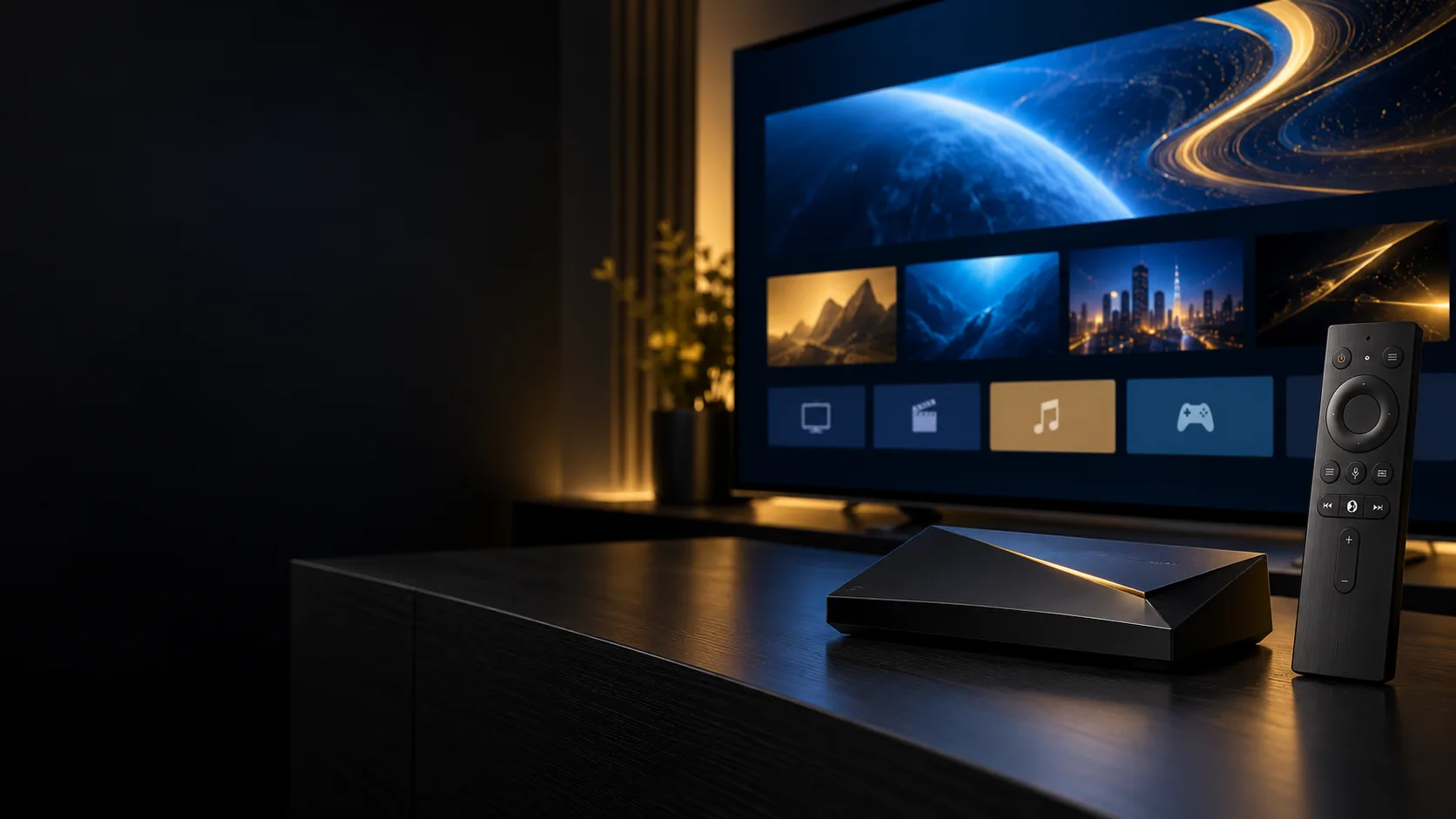
This guide explains the full process for UK viewers, including the equipment you need, the difference between the common login methods, and a few settings that can make everyday viewing more comfortable. If you are still comparing plans, you can also see the IPTV subscription plans available from BritCast.
What you need before setting up IPTV on NVIDIA Shield
Prepare these items before opening the player app:
- An NVIDIA Shield TV or Shield TV Pro connected to your television.
- A television or monitor with an available HDMI port.
- A stable internet connection. Ethernet is useful when the router is nearby, while Wi-Fi works well when the signal is strong.
- A Google account for the Android TV setup and Google Play Store.
- IPTV login details from your provider, normally an M3U playlist URL or Xtream Codes details.
NVIDIA’s official Shield TV Pro guide confirms that the device can connect by Ethernet or Wi-Fi and needs an HDMI connection. For 4K or HDR output, your television, HDMI connection and player source must all support the format.
Why IPTV on NVIDIA Shield works well
The Shield is an Android TV device rather than a closed television platform. That gives you access to Google Play and a wider choice of remote-friendly media players than you normally get on a smart TV app store.
It also has a useful advantage for people who watch live sport or high-bitrate channels: you can use a wired connection when the device is close to the router. Ethernet does not fix a slow IPTV service, but it removes wireless interference as one possible cause of buffering.
For most households, IPTV on NVIDIA Shield is straightforward once the connection, player and login details are ready. The important parts are a good connection, a working player and accurate login details. You do not need to change advanced settings before you have tested the basics.
How to set up IPTV on NVIDIA Shield
1. Finish the Shield setup and install updates
Connect the Shield to power and your television, select the correct HDMI input, then follow the Android TV setup on screen. Sign in to your Google account and check for system updates before installing your player.
On the Shield, open Settings, go to Device Preferences, select About, then look for System upgrade. The wording can vary slightly between software versions, but the goal is the same: make sure the device is running current software before you troubleshoot an app.
2. Choose Ethernet or Wi-Fi
Use Ethernet if your router is close enough for a clean cable run. It is the simplest way to keep the connection consistent during long live-TV sessions.
If you use Wi-Fi, place the Shield where it receives a strong signal and avoid hiding it behind other electronics. Start with the normal network settings. There is no need to change DNS, install a VPN or adjust developer settings just to add a legitimate player from Google Play.
For more help choosing the right connection, see our practical guide to internet speed for IPTV.
3. Install a player from Google Play
Open Google Play Store on the Shield and search for the player your provider supports. Two common options are:
- TiviMate: a good fit for viewers who want a traditional TV guide, favourites and detailed layout controls. Our TiviMate IPTV Player guide covers the main setup screens.
- IPTV Smarters Pro: a straightforward starting point when you want a familiar login flow and simple navigation.
You can also use another player if it supports Android TV and the login format supplied with your subscription. Install the official version where possible, and avoid random APK files when the same app is available through Google Play.
4. Add your IPTV login details
Open the player and select its option for adding a playlist or user. The labels differ between apps, but you will normally see one of these two methods.
Xtream Codes API usually asks for:
- A profile name.
- Server URL.
- Username.
- Password.
M3U playlist asks for one playlist URL. Some providers also supply a separate EPG URL for guide data.
Copy the details carefully. A missing port number, an extra space or a capital letter in the wrong place can stop the playlist from loading. Never post your credentials in a public comment or support group.
5. Let the playlist finish loading
When IPTV on NVIDIA Shield loads a large playlist, the first sync can take a little longer if it contains many categories. Leave the app open until live TV, films, series and the guide have finished loading.
Then test a few different types of content:
- One UK live channel.
- A channel you would normally watch at peak time.
- One on-demand item.
- The EPG, if your plan includes guide data.
Testing more than one category helps you separate a login problem from a single channel or guide issue.
TiviMate or IPTV Smarters Pro on Shield?
There is no single player that suits every household. The choice usually comes down to how much control you want over the guide.
| Priority | Better starting point | Reason |
|---|---|---|
| Fast, simple setup | IPTV Smarters Pro | Familiar menus and a direct login flow |
| A TV-style guide | TiviMate | More control over favourites, layout and guide behaviour |
| A backup player | Another Android TV-compatible app | Useful when an app has a temporary issue or does not suit your remote |
Start with one player and learn its settings before installing several alternatives. Switching apps too quickly can make it harder to tell whether the problem is the player, the network or the IPTV source. If you also use a Firestick, our Fire Stick 4K setup guide explains how the installation path differs.
Simple Shield settings worth checking
Most Shield users should leave advanced options alone at first. These checks are safe and useful:
NVIDIA’s documentation notes that 4K and HDR output depends on the display and HDMI chain as well as the Shield. A 4K television alone cannot turn an HD source into genuine 4K.
Fixing common IPTV problems on NVIDIA Shield
The player says the login is invalid
Check whether you selected Xtream Codes or M3U. Then re-enter the server URL, username and password without spaces. If the details still fail, ask your provider to confirm that the subscription is active and that the server address has not changed.
The guide is empty
Some players load live channels before the EPG. Wait for the first sync, then check whether an EPG URL was supplied separately. If only some categories are missing, refresh the playlist rather than deleting the whole app.
One channel buffers
Test another channel first. If the rest of the service plays normally, the issue may be limited to that source. If several channels buffer, compare Ethernet with Wi-Fi and check other streaming apps on the Shield.
4K content looks like HD
Check the source quality, the plan you are using, the television input and the HDMI cable. Also confirm that the player is not forcing a lower output resolution. The Shield can support high-quality output, but every part of the setup has to support it.
Typing credentials with the remote is awkward
NVIDIA provides a Shield TV mobile app that can act as a remote and keyboard. It is useful when entering a long server URL or password. Keep the phone and Shield on the same network while pairing them.
Frequently asked questions
Can I use IPTV on NVIDIA Shield TV?
Yes. NVIDIA Shield TV runs Android TV and provides access to Google Play. Install a compatible player, then add the M3U playlist or Xtream Codes details supplied with your subscription.
Do I need Shield TV Pro for IPTV?
No. Basic IPTV playback does not require the Pro model. Choose the model that fits your television, storage and connection needs, then focus on using a supported player and a stable network.
Is Ethernet required for IPTV on NVIDIA Shield?
No. Wi-Fi can work well when the signal is strong. Ethernet is worth using when it is convenient because it removes wireless interference from the list of possible causes when live streams stutter.
Can I use the same subscription on another device?
That depends on the provider’s connection rules. Ask support before using the same credentials on multiple devices at the same time, especially if your plan limits simultaneous streams.
Which IPTV player is easiest on Shield?
IPTV Smarters Pro is often the simplest starting point for a first login. TiviMate is a better fit for viewers who want a detailed TV guide and more control over the layout. Both choices depend on current app availability and your provider’s supported login method.
Final thoughts
Setting up IPTV on NVIDIA Shield is mostly a matter of using the right player and entering the correct credentials. Connect the device, update it, install a compatible app from Google Play, then test the playlist before changing advanced settings.
If you need help choosing a plan or checking which login method works with your Shield, contact BritCast on WhatsApp. We can point you towards the setup path that matches your device.