
IPTV Smarters Pro not working? Start by working out what has stopped: the app, the connection, the login or the playlist. Try another streaming app on the same device, note the exact error and restart your player. Those small checks can save you from reinstalling an app that was never the problem.
You have settled in, the tea is still hot and the screen is stuck loading. Familiar? This guide takes you through the useful checks in a sensible order, whether you are using a Fire TV Stick, Android TV box or a compatible smart TV. Menu names can vary by device and app version.
Quick answer: Restart the app and device, test the internet on that device, then check your account details and connection allowance. If the app itself crashes, clear its cache where available. Contact your provider if the same account cannot load on another supported device.
First, find out what is actually failing
“It doesn’t work” can describe several different problems. Look for the closest match below before reaching for the uninstall button.
- The app will not open or closes: investigate the app, available storage and device software first.
- Login is rejected: check the credentials, server address and account status.
- Login works but the playlist will not load: test the network, playlist and service status.
- Some videos play and others do not: the individual source, its format or the device may be involved.
- Everything plays but the guide is empty: check the guide data rather than resetting the entire app.
There can be more than one cause. A failed test is a clue, not a verdict. IPTV Smarters Pro is a player; the playlist or account used with it comes separately from its provider.
1. Restart the app and the device
Closing a screen with the Home button does not always stop an app. On a Fire TV Stick, open Settings → Applications → Manage Installed Applications, select the player and choose Force stop if that option appears. Reopen it and try again.
If the result is the same, restart the streaming device. If other apps are struggling too, restart your router using its usual instructions and wait until the connection is fully back. This is a quick test, not a magic ritual: if only one playlist fails, keep investigating.
2. Check your connection where you actually watch
Open a familiar streaming app on the same TV or streaming stick. If it also struggles, the local connection or device deserves attention. A speed result on your phone across the room will not tell the whole story about a stick tucked behind a television.
Run a speed test on the affected device where possible, pause large downloads and try moving the router or using Ethernet if practical. Our guide to internet speed for IPTV explains what to check. Speed alone does not rule out Wi-Fi interference, network instability or a service problem.
3. Fix IPTV Smarters Pro login problems
A login error is annoying, but it gives you a useful starting point. Check the details against the message from your provider. TV keyboards have a talent for turning a quick sign-in into a spelling test.
- Check the username and password, including capital letters and accidental spaces.
- Enter the server address exactly as supplied, including the protocol and port if provided.
- Use the login method that matches your details. An M3U link and separate Xtream Codes fields are different formats.
- Ask your provider whether the account is active and whether its permitted simultaneous connections are already in use.
Our M3U vs Xtream Codes guide explains the two common formats. Avoid posting a username, password or full playlist link in a public comment; a playlist URL can contain credentials.
4. The playlist is stuck loading or appears empty
First check whether your connection works elsewhere on the device. Then compare the playlist address or account details with the current information from your provider. A copied address with a missing character can leave you staring at a loading screen for longer than anyone deserves.
If you have another compatible device, you can test the same account there within the provider’s connection limit. Sign out or stop playback on the first device before testing if your plan allows only one connection. If it fails on both, ask the provider to check the account and server. If it works on the second device, investigate the first device or its network.
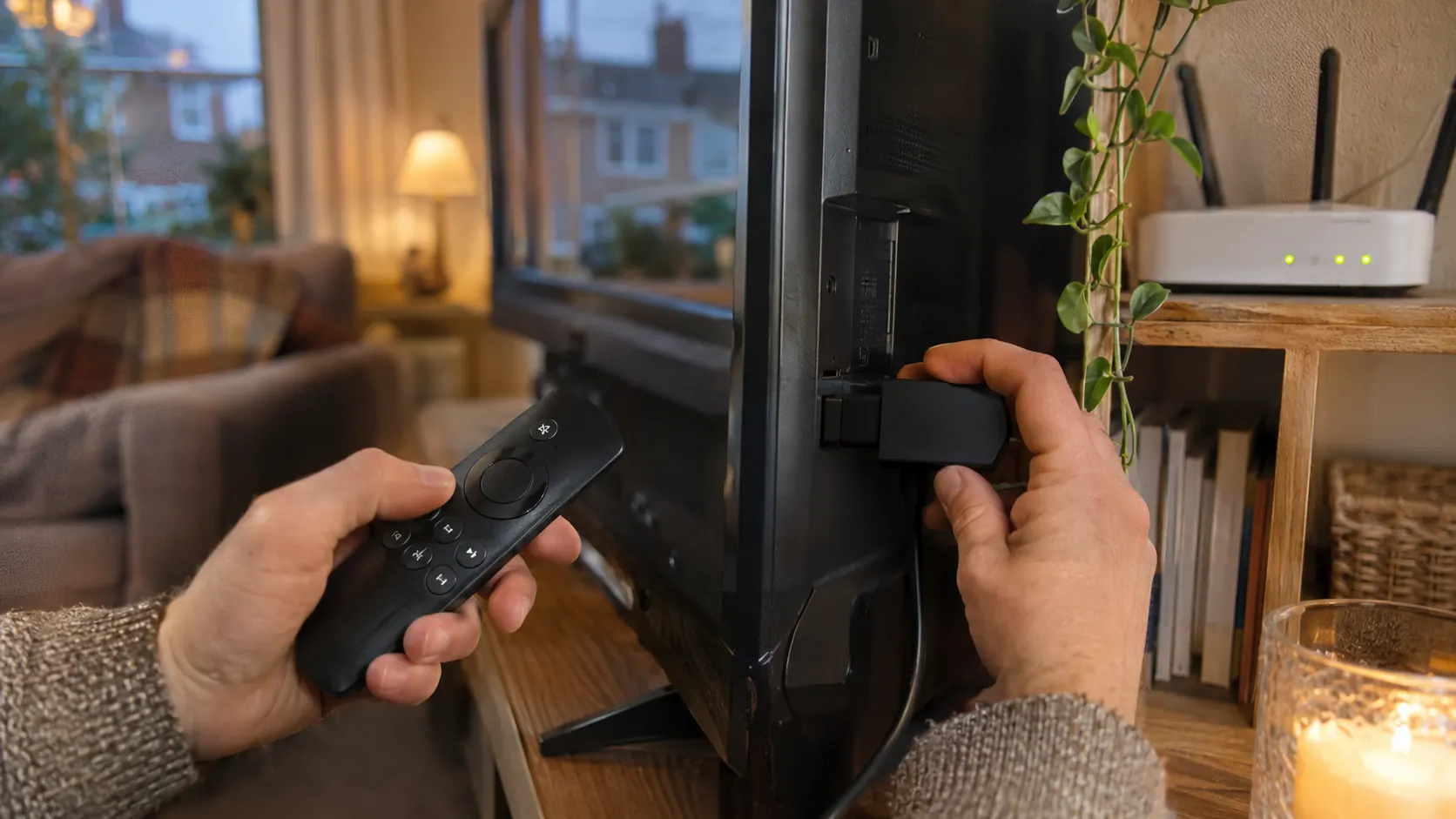
5. IPTV Smarters Pro keeps crashing or freezing
If the app closes before you can sign in, start with the device. Check that there is free storage, restart it and install any available device updates. If your version offers a cache option, clearing temporary cache is a sensible next step.
On a Fire TV Stick
- Open Settings, then Applications.
- Choose Manage Installed Applications and select the affected app.
- Choose Clear cache, if available, then reopen the app.
Clear cache and Clear data are different. Clearing data or reinstalling can remove saved settings and require you to sign in again. Before either step, make sure you have your account details and a trustworthy, currently available source for the app. Availability differs by region and device.
Amazon explains where to manage installed applications in its Fire TV app instructions. The exact options shown can vary by Fire OS version.
6. Sound works but the screen is black
Try another item in the same player. If only one item fails while others play, that points towards the source or its format; it does not prove the whole app is broken. If every item shows a black screen, restart the device and check for device and app updates.
Some app versions offer different playback or decoder settings. Change only one option at a time, note its original value and test again. If the problem continues, give your provider the device model, app version and whether it affects one item or all of them.
7. The TV guide is missing
If playback works but programme information is blank, look for a guide or EPG refresh option in your version of the player. The guide may depend on data supplied separately by the service. You do not need to delete a working playlist just because programme times are missing.
For a closer look at guide sources and time settings, read IPTV EPG not working: practical fixes.
What if IPTV Smarters Pro is not working on Firestick?
Follow the same order: check another app, force stop the player, restart the Firestick and clear its cache if available. If the picture starts but repeatedly pauses, our separate guide to stopping IPTV buffering on Firestick focuses on network and playback checks.
For Android TV boxes, similar app settings may be under Settings → Apps, although the exact labels depend on the manufacturer. On Samsung and LG TVs, available apps, updates and reset options depend on the model, operating system and region. Avoid assuming that a Firestick menu path will match your television.
When should you contact your provider?
Contact your provider when the account or playlist fails on more than one compatible device, the server details may have changed, or you need to confirm an account’s status. A concise message helps support investigate faster:
- Your device model and app version, if you can find them.
- The exact wording of the error and when it started.
- Whether other apps work on the same connection.
- Whether the issue affects every item or just one.
- Which checks you have already tried and what happened.
Share private account details only through the provider’s trusted support channel when needed. Never paste credentials or a complete playlist URL into public forums or unfamiliar checking tools. If you are a BritCast customer, contact BritCast support on WhatsApp.
IPTV Smarters Pro not working: frequently asked questions
Why does the app say my login details are invalid?
A typing error, an old server address, an inactive account or a connection limit could be involved. Compare the details with the information from your provider and ask them to check the account if the error remains. The message alone does not establish the cause.
Will clearing the cache delete my account?
Clearing an app’s temporary cache is different from clearing its data. Clearing data or reinstalling can remove local settings and sign you out. Options vary by device, so read the on-screen prompt and keep your login details safe before resetting anything.
Does a fast speed test mean the service should work?
Not necessarily. A speed test measures one part of a connection at one moment. Wi-Fi stability, the device, the route to a service and the service itself can also matter. Compare results on the affected device and test another app.
Should I reinstall IPTV Smarters Pro straight away?
Start with less disruptive checks first. Reinstalling may remove local settings and will not repair an expired account or unavailable playlist. Before uninstalling, confirm you can obtain the app from a trustworthy, currently available source for your device.
Can I use the same login on another device to test?
Only if the provider supports that device and your plan permits the test. Installing a player on two devices is not the same as permission for two simultaneous streams. Stop the first session and check your provider’s connection rules.
Get back to watching, one check at a time
When IPTV Smarters Pro is not working, begin with the exact symptom and change one thing at a time. That makes it easier to tell whether the issue belongs to the device, connection, app or account, and gives support useful information if you need help.
Need to compare plan terms for a compatible device? Explore the IPTV subscription options or visit BritCast for setup guidance.