
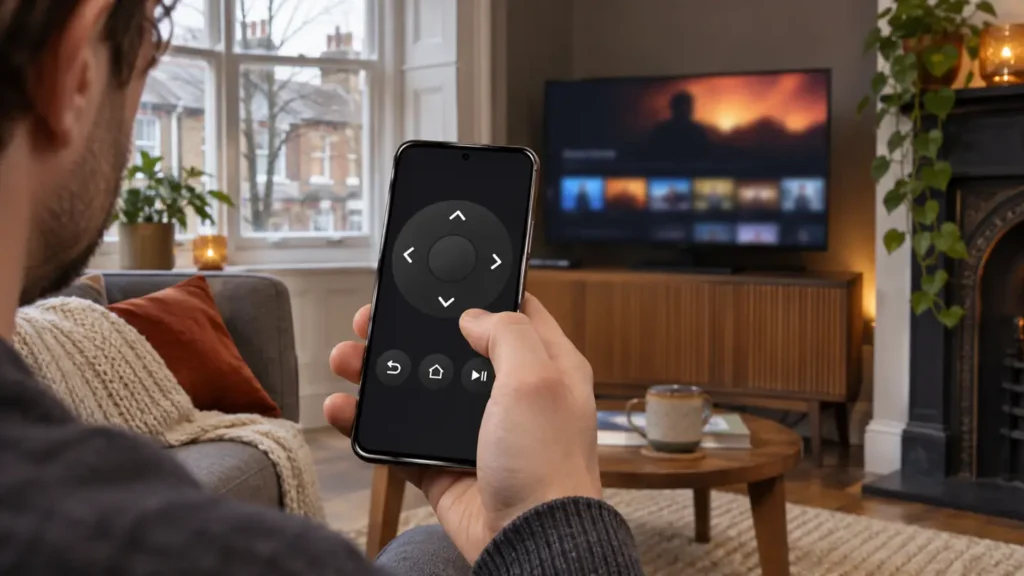
The remote has vanished, the telly is on, and you’ve already checked the sofa twice. The free Firestick remote app you want is called Amazon Fire TV. Install it on your iPhone or Android phone, connect the phone to the same Wi-Fi as your Fire TV Stick, then pair the two. You can get back to your programme without finding a single AA battery.
There’s one detail that determines whether this takes a minute or an evening: is the stick already on your home network? If it is, start below. If you’ve just changed router or taken the stick to a hotel, jump to using a new Wi-Fi network.
How to set up the Firestick remote app in 5 steps
- Find Amazon’s app on your phone. Download Amazon Fire TV from the UK App Store or Google Play. Searching for “firestick remoteapp” can bring up several lookalikes. Check the publisher is Amazon before you install anything.
- Get the TV and phone ready. Turn on the television and select the HDMI input your stick uses. On your phone, open Wi-Fi settings and join the same home network as the stick. Mobile data alone won’t do this job.
- Open Amazon Fire TV and sign in. Tap the remote icon. Choose Set Up New Fire TV if prompted, or select your stick if it already appears. In a house with two sticks, check the room name before you tap.
- Follow the pairing prompt. Keep the television in view. If it displays a code, enter that code on your phone. It’s for this pairing, so there’s no need to dig out your Wi-Fi password or an IPTV login.
- Try one button. Move the highlight one tile across the Fire TV home screen. If it moves on the right television, you’re paired. Open the app you wanted to watch.
Button labels can vary as Amazon updates the app. Its official mobile remote instructions show the current pairing route.
Where the phone beats the plastic remote
Try searching for a programme with a long title. On a physical remote, picking out each letter with the arrows gets old somewhere around letter four. With the phone, select the search field on the TV and use the keyboard in the remote app where the player supports it. If the TV app opens its own keyboard instead, the directional controls still let you choose letters.
This is especially handy in an IPTV player. Open the player on the stick, select its search box and try a channel name first. If the letters appear on the television, use the same method for longer entries. When entering a playlist address supplied by your provider, check for an extra space at the end before saving it. If you still need a player, our Firestick IPTV player comparison explains what each one does. Amazon Fire TV supplies the remote controls; your chosen player opens your playlist.
Firestick remote app not finding your device?
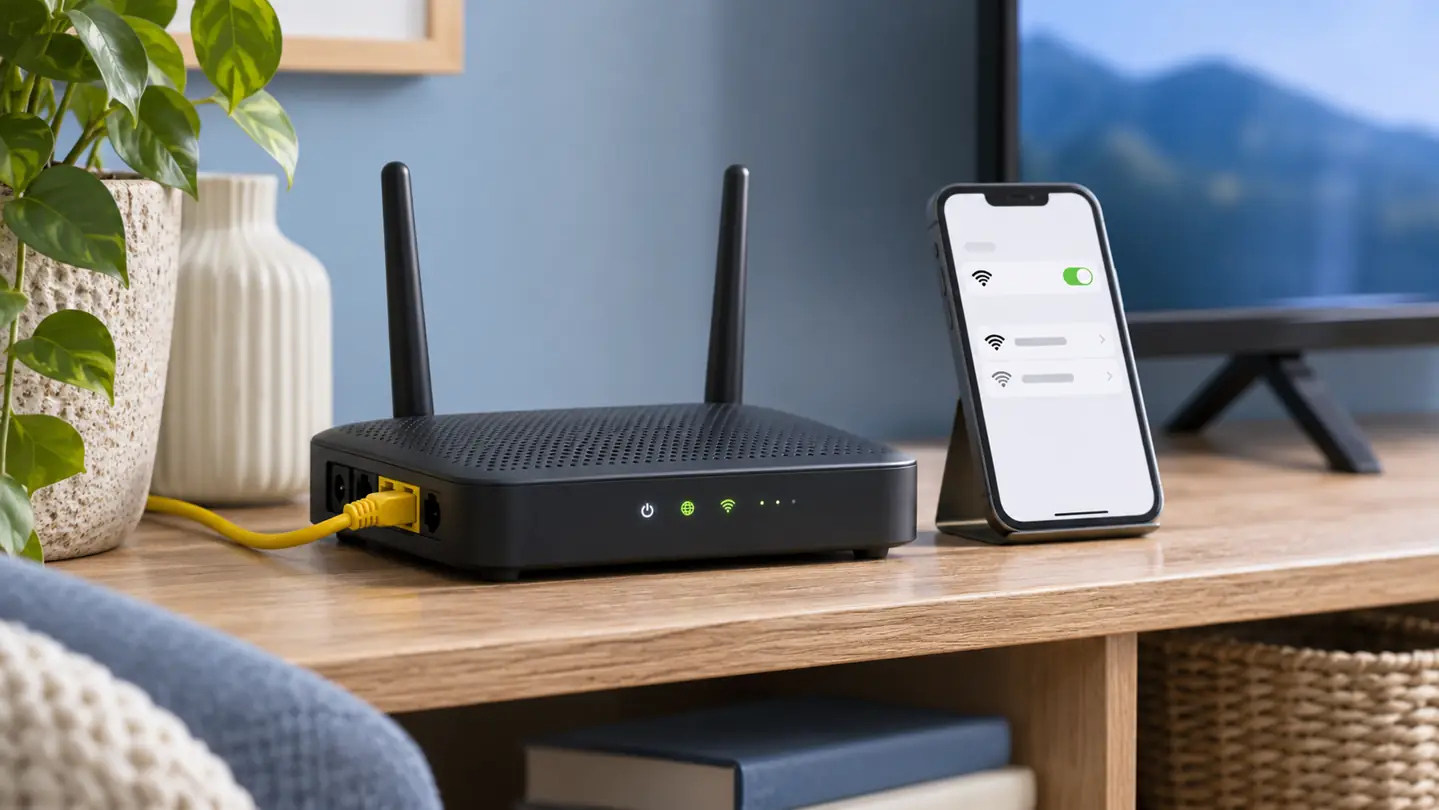
The list of devices is empty. Start on your phone. A Wi-Fi symbol only tells you that it’s connected somewhere. Check the network name: a guest network can give you internet access while keeping your phone separate from the TV. If your iPhone asked for local network access and you declined, open Settings, then Privacy & Security, then Local Network, and allow Fire TV. Open the app again.
The stick appears, but no code shows up. Check you can actually see the Fire TV home screen. A television can be on while showing a different HDMI input. If you have a bedroom stick as well, check that you selected the right one. Then reopen the remote app and select the device again.
The menus work, but the picture keeps stopping. That first successful button press tells you something: the phone can reach the stick. If the highlight moves promptly while a programme keeps freezing, leave pairing alone and check playback instead. Our Firestick buffering guide walks through that separate problem.
Changed router or taken the stick away from home?
Imagine unpacking the Fire TV Stick in a holiday flat and finding you’ve left the remote at home. Your phone joins the flat’s Wi-Fi easily. The stick, though, still remembers the router in your living room. Downloading the app again won’t put the stick on the flat’s network.
Look at the television first. If the Fire TV setup screen offers a QR code for Wi-Fi setup, follow that prompt. Otherwise, try the television’s own remote: on compatible sets with HDMI-CEC enabled, its arrow keys may navigate the stick’s menus. If that works, open the Fire TV network settings and join the new Wi-Fi. If neither option is available, you may need a compatible physical Fire TV remote to complete setup. A factory reset can leave you with the same Wi-Fi problem and your saved settings gone.
Quick questions from the sofa
Is the Firestick remote app free on iPhone and Android?
Yes. Amazon’s own Fire TV app is free to download. If a remote app asks you to start a weekly subscription before you can use the arrows, check its developer and go back to the Amazon listings linked above.
Can I use it to turn the volume down?
It depends on the equipment. On supported Fire TV devices, the mobile app offers volume and power setup. Your TV must also support HDMI-CEC and have it enabled. If the phone already navigates menus but can’t change the volume, check Amazon’s volume and power guidance before pairing everything again.
Can the phone help me pair a replacement remote?
Yes, once the phone controls the stick. Use it to open Settings → Controllers & Bluetooth Devices → Amazon Fire TV Remotes → Add New Remote. Follow the on-screen instructions for your compatible replacement. Keep the phone connected until you’ve tested the new remote’s arrows.
Do I need an IPTV subscription to use the remote?
No. You can test the Firestick remote app on the Fire TV home screen before opening any player or buying a viewing plan. If you already use BritCast, reopen your usual player once the phone is paired. Your subscription details stay with the player, so a missing remote is no reason to buy another plan.