
You’ve installed UHF IPTV, settled into the sofa and opened the app. Where’s the telly? An empty library is normal on first launch. UHF plays content you add yourself. To get a picture, open the option to add a playlist and choose the format that matches the details you received. One long link goes into the playlist URL field. A server address plus a username and password goes into Xtream.
Have those details handy on your iPhone, even if you plan to watch on Apple TV. Typing a long address with the remote is a rather committed way to spend a Sunday.
Find the right UHF IPTV player
Look for UHF – Love your IPTV by Short Wavelength Applications SL in the UK App Store. On iPhone, that link takes you to the listing. On an Apple TV box, open its App Store and search for the same name. If your smart TV has an Apple TV app for films and programmes, that alone doesn’t give it the Apple TV box’s App Store. Our Apple TV setup guide covers the device options.
You can download the UHF app and try core playback for free. The developer lists cross-device sync among the optional Pro features. If you’re setting up just one screen, get a channel playing before deciding whether an upgrade would do anything useful for you.
Which playlist option should you choose?
Open the email or account page where your authorised provider supplied your viewing details. Here’s how to match those details to the right option in UHF IPTV.
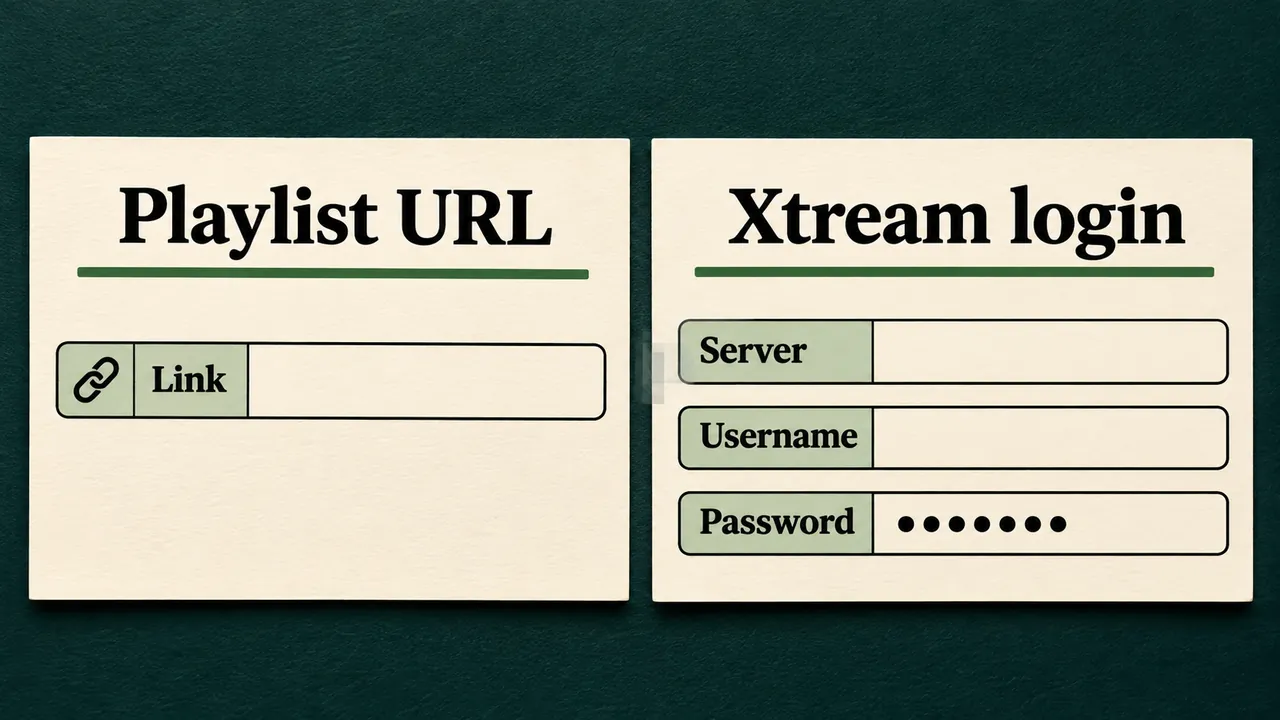
- A single playlist link. Choose the M3U8 playlist option. Copy the whole address, including anything after a question mark. A playlist link can contain your login details, so treat it like a password.
- A server, username and password. Choose the Xtream playlist option. The server address goes in the first field. Keep the username and password separate. A number after the server name, such as
:8080, is part of the address if your provider included it.
Only have a receipt or the address where you manage your account? Look for a separate setup email or a playlist section in your account. Pasting a checkout link into UHF IPTV won’t load channels. Ask your provider for the playlist address if the receipt is all you have. If you’ve received both types of login, our M3U and Xtream Codes guide explains how each handles channels and programme information.
Add your first playlist in UHF IPTV on Apple TV or iPhone
- Open UHF and choose the option to add a playlist. On a fresh install, start at the library prompt. If you already have a source, open the playlist settings to add another. Give it a recognisable name if asked. “Living room” will mean more to you next month than “Test 2”.
- Enter your viewing details. For M3U8, paste the complete link into UHF IPTV’s playlist URL field. For Xtream, enter the server exactly as supplied, then the username and password. On iPhone, copy each value separately. On Apple TV, if an Apple TV Keyboard notification appears on your nearby iPhone when you select a field, tap it to type on the phone.
- Save the playlist and let it load. Once channel names appear, open one you recognise. Check the picture and sound, then try a second channel. If both play, add a favourite so you can find it next time without scrolling through the whole list.
If you use UHF IPTV on both devices, stop playback on the first before testing the second. An account limited to one simultaneous stream can make a perfectly good second setup look faulty while the first screen is still playing.
Channels missing, guide empty or picture frozen?
The most useful clue is the last thing that worked. Did UHF accept the login? Are there channel names? Can you hear or see a programme? Each answer saves you a different bit of guesswork.
The library is still empty
Open the saved playlist in UHF IPTV and compare the address with the one in your original setup email. Look closely at the end of a pasted link and the beginning of a server address. A missing character or a space from copying an email is easy to overlook. If you’re unsure what to send support, give them the device, the exact error and the stage at which it appeared. Crop any credentials out of screenshots.
Channels play, but the programme guide is blank
If a channel plays in UHF IPTV, keep the working login. Open a second channel and check whether its programme times appear. One empty row can simply mean that schedule data is missing for that channel. If every row is empty, check whether your source includes an electronic programme guide (EPG). Some playlist providers supply a separate guide address. If yours does, keep it separate from the channel playlist URL. Follow our guide to fixing a blank IPTV programme guide for the next checks.
One channel won’t play
Try another entry from the same playlist before reinstalling anything. If other channels play normally in UHF IPTV, tell your provider which channel failed and when you tried it. If the same channel works on your iPhone, stop it there and try again on the TV. That quick comparison is far more useful than deleting a library you’ve just set up.
UHF app questions before you pay
Does UHF IPTV include a channel subscription?
UHF displays the media you add. An App Store purchase unlocks app features. To watch a particular service, you still need a compatible source you have permission to use. If you’re choosing a service, you can compare BritCast subscription plans and check the login format and screen allowance before ordering.
Will my iPhone playlist appear on Apple TV?
The developer includes automatic cross-device sync in UHF Pro. If you use the free player, keep your original playlist details handy so you can enter them on the second device. Syncing a library and being allowed to watch on two screens at once are separate settings. Your viewing provider sets the simultaneous-stream allowance. See UHF’s feature list for the current app options.
What should I keep when moving UHF IPTV to a new device?
Keep the original setup email somewhere private and save the programme guide address if you were given one. A playlist name like “Living room” helps you recognise it in UHF, but it can’t restore the source on its own. When you change phones or replace the TV box, that original email is the one you’ll want.
If you have a BritCast plan and get stuck at the first screen, tell support whether you have one link or three login fields. That small detail gives them a much better starting point than “the telly’s blank”.