
IPTV EPG not working? If channels play but the programme guide is blank, start with the guide source, its last successful refresh and the channel mapping. If programmes appear an hour early or late, check the device clock and any manual guide offset. These are different faults, so they need different checks.
An electronic programme guide, or EPG, supplies schedules. The video stream supplies the picture. One can work while the other fails. This guide from BritCast helps UK viewers narrow down the problem while protecting their saved playlists and keeping track of each settings change.
Start here: choose one affected channel, open the guide at Now, and note what is wrong. Work through the matching section below. After each change, check that same channel again.
1. IPTV EPG not working: identify the symptom
A blank grid and an incorrect schedule may look similar from the sofa, but the distinction saves time. Before editing anything, check three channels from the same playlist and ask:
- Is the whole guide empty? Start with source access and the refresh result.
- Are only a few channels blank? Check coverage and channel matching.
- Are the programme names wrong? Check the channel version or regional match.
- Are the right programmes consistently an hour out? Check time settings.
- Does today work, but tomorrow is empty? Check how many days the source actually supplies.
Make sure you are viewing today’s listings. A guide left on a previous date, another playlist or an empty channel group can make fresh data look missing. If the picture also fails, note that separately: the problem may extend beyond the EPG.
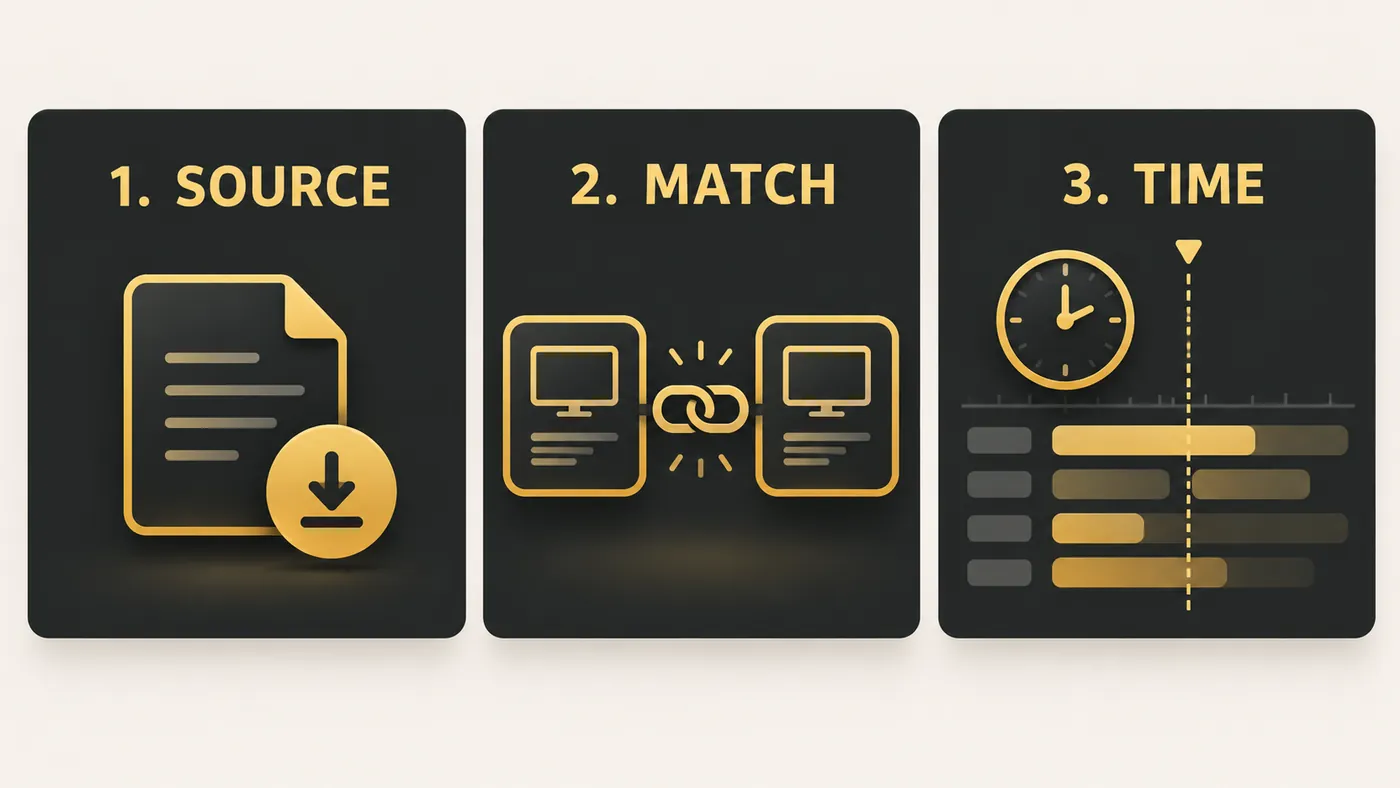
2. Check that the player has the correct guide source
Open the settings for the affected playlist or account. Look for EPG, TV Guide, Guide Source or XMLTV. Menu names vary between applications and versions.
With an M3U playlist, guide information may come from a separate XMLTV address or from a guide address supplied with the playlist. Some account-based logins retrieve it automatically. Neither method guarantees that a working, current schedule is available.
Check the details against the latest information supplied by your service. Watch for an old server address, an incomplete pasted link, an accidental space or an EPG source assigned to the wrong playlist. If the login methods are unfamiliar, our M3U vs Xtream Codes guide explains the difference.
Keep the guide URL private. It can contain a username, password or access token. Avoid uploading it to public link checkers, posting it in forums or leaving it visible in screenshots. Ask the service to confirm the correct source through its private support channel.
3. Refresh once, then check what actually changed
Use the player’s guide update or refresh control and let the operation finish. Refreshing the channel list and refreshing the EPG may be separate actions. Repeatedly pressing both buttons makes it harder to see which operation failed.
- Note the guide’s last update time, if the app shows one.
- Run one manual EPG refresh.
- Read any completion message, download count or error.
- Return to Now and check the same channels.
A successful download does not prove that every channel has listings. The file may be valid but contain no matching channels, old dates or a limited future schedule.
If the guide only covers today and tomorrow, increasing an app’s “days to display” setting cannot create the rest of the week. Confirm the feed’s coverage before treating a short guide as a download failure. Once it works, use a sensible automatic update schedule supported by the app and your provider.
4. Match the right channel, region and version
When most channels have listings and a few do not, look at matching before reinstalling anything. A playlist channel and its schedule need a shared identity. Similar names are helpful to a person, but they are not always enough for an application.
For example, a playlist may use tvg-id="example.uk" while the guide identifies the same service as example.hd.uk. Those identifiers differ. A player with name-based fallback matching may still find something; another player may leave the row blank.
The official Kodi IPTV Simple documentation describes how it matches M3U channel identifiers to XMLTV guide entries. Its fallback rules and menu labels are specific to Kodi, so do not assume every IPTV app behaves identically.
If your app offers manual EPG assignment, test one channel first. Match the correct region, HD or SD version and any time-shifted version such as “+1”. Check both the current programme and the next one before applying the change more widely.
Our TiviMate IPTV player guide covers the broader player setup. For a managed playlist with many missing matches, send the affected channel names to the provider so it can investigate the source mapping.
5. Correct UK programme times without double-shifting
If the programme titles are right but their times are wrong, first confirm the device’s date, clock and time zone. For a device used in the UK, choose the UK or Europe/London time zone where available, with automatic date and time enabled. If you are abroad, decide whether the guide should display your local time or UK time.
The UK uses GMT in winter and BST in summer. GOV.UK’s clock-change guidance explains the seasonal switch. A device locked to a fixed offset can display the wrong hour after that change.
However, a one-hour mismatch does not automatically mean you should add one hour in the player. XMLTV can include a time-zone offset in its timestamps. According to the XMLTV specification, UTC is assumed when no explicit time zone is supplied.
A useful example: 20:00 with an offset of +0100 and 19:00 with an offset of +0000 represent the same instant. A player interpreting those offsets correctly should not need an extra summer correction.
- Record the existing global and channel-specific guide shifts.
- Correct the device clock and time zone.
- Remove an unintended manual shift, then compare one known programme against that broadcaster’s own schedule.
- Only apply a source-specific correction when you have confirmed the remaining mismatch. Save the original setting so you can undo it.
If just one channel is an hour out, check whether it is a “+1” service or has its own offset. A global shift would move the channels that were already correct.
6. Clear temporary data carefully
When the correct source works elsewhere but one device keeps showing stale listings, restart the player and device. Check that the app is up to date and that the device has room to download and process the guide.
If the player has a control to clear only its EPG database or guide cache, read its description before using it. Save any manual channel assignments first. Different apps may rebuild or remove different settings.
At device level, Clear cache and Clear storage are different actions. Google’s Android guidance says that clearing cache removes temporary data, while clearing storage permanently deletes app data.
Before clearing app data or reinstalling, make sure you can recover your login details, playlists, favourites and custom mappings. Reinstallation may remove a local problem, but it cannot add schedules missing from the source. If the guide is fine and only the picture freezes, follow our Firestick buffering troubleshooting guide instead.
7. Use a controlled comparison and send useful evidence
If permitted by your subscription and the player’s terms, compare the same current guide source in a second compatible player. Keep the channel, region and date the same, and avoid playing multiple streams if your plan only allows one connection.
If both players lack the same listings, ask the provider to check feed coverage and mapping. If one works, compare the failing player’s source assignment, refresh result and time settings. This comparison narrows the fault; it does not prove that either application is universally better.
If your IPTV EPG is still not working after these checks, a short support message is more useful than “the guide is broken”. Copy this checklist:
- Device and operating system: model and version, if known.
- Player: app name and version.
- Symptom: blank, wrong programmes, stale dates or shifted times.
- Scope: all channels or the exact names and regions affected.
- Refresh: last attempt, visible result and any error message.
- Comparison: whether the same channel and source work elsewhere.
Redact credentials and full source URLs from screenshots. Use a private support channel if the provider needs account details. Ask it to confirm whether current programmes exist for the affected channels before making more local changes.
Frequently asked questions
Why are channels playing while the EPG is blank?
Video playback and guide data are separate. The player may have a working stream address but no accessible guide source, no current listings or no matching channel identifiers. Check the guide’s source and refresh result, then compare several channels from the same playlist.
Why is my IPTV guide one hour out in the UK?
Possible causes include a wrong device time zone, a manual guide shift, source timestamp interpretation or a “+1” channel mismatch. Check one known programme against its broadcaster’s schedule. Avoid automatically adding an hour, because the app may already be handling GMT and BST correctly.
Will reinstalling the player restore missing programmes?
It may help with a damaged local setup, but it cannot restore listings that the provider does not supply. Check source coverage, refresh and matching first. Save your login, favourites and channel assignments before reinstalling, because removing app data can erase those settings.
Does a programme in the guide mean catch-up is available?
No. An EPG entry describes a scheduled programme; it does not guarantee a recording or an available catch-up stream. Catch-up depends on the service, channel, subscription and player support. A correct guide can therefore coexist with unavailable past programmes.
Get the guide right before changing the setup
If the guide still fails, work through source access, fresh listings, matching and time settings in that order. Keep the checks small enough that you can tell what fixed the fault.
If you are comparing services, ask about guide coverage for the channels and devices you actually use. You can review BritCast IPTV subscription options and confirm device compatibility before ordering. A clear answer about your setup is more useful than a promise that every guide works on every screen.